AIM Cockpit Manager: User Guide
Welcome. This guide covers everything you need to get your cockpit wired up, configured, and flying.
Download Get a key Report an issue Feature requests
What the AIM platform is
The AIM network is the backbone of an Invictus cockpit. Each AIM panel board (Sidewinder, Phoenix) connects to your PC over a single Ethernet cable that carries both data and power. No separate power supplies, no USB hubs, no driver installs for the boards. The AIM Cockpit Manager is the Windows app that ties it all together: it finds your boards, walks you through setup, and keeps your switches, knobs, and displays in sync with the sim while you fly.
From version 2.0 the manager also drives panels you build on your own Arduino, Teensy, Raspberry Pi Pico or ESP32 boards. Those plug in over USB and need an Open Hardware key. See Open Hardware.
What the manager does
- Finds every AIM board on your cockpit network, and every Open Hardware board on USB, and guides you through a setup wizard.
- Lets you assign each switch, knob, and pot to a pin, or learn the wiring by flipping the switches, then test it live. No round-trips to the simulator.
- Installs the sim integration for DCS World and Falcon BMS.
- Puts your MFDs, DED, RWR, HUD, and EHSI on extra monitors in both sims.
- Updates itself and your AIM board firmware over the air. Open Hardware boards update over their USB cable.
Where to start
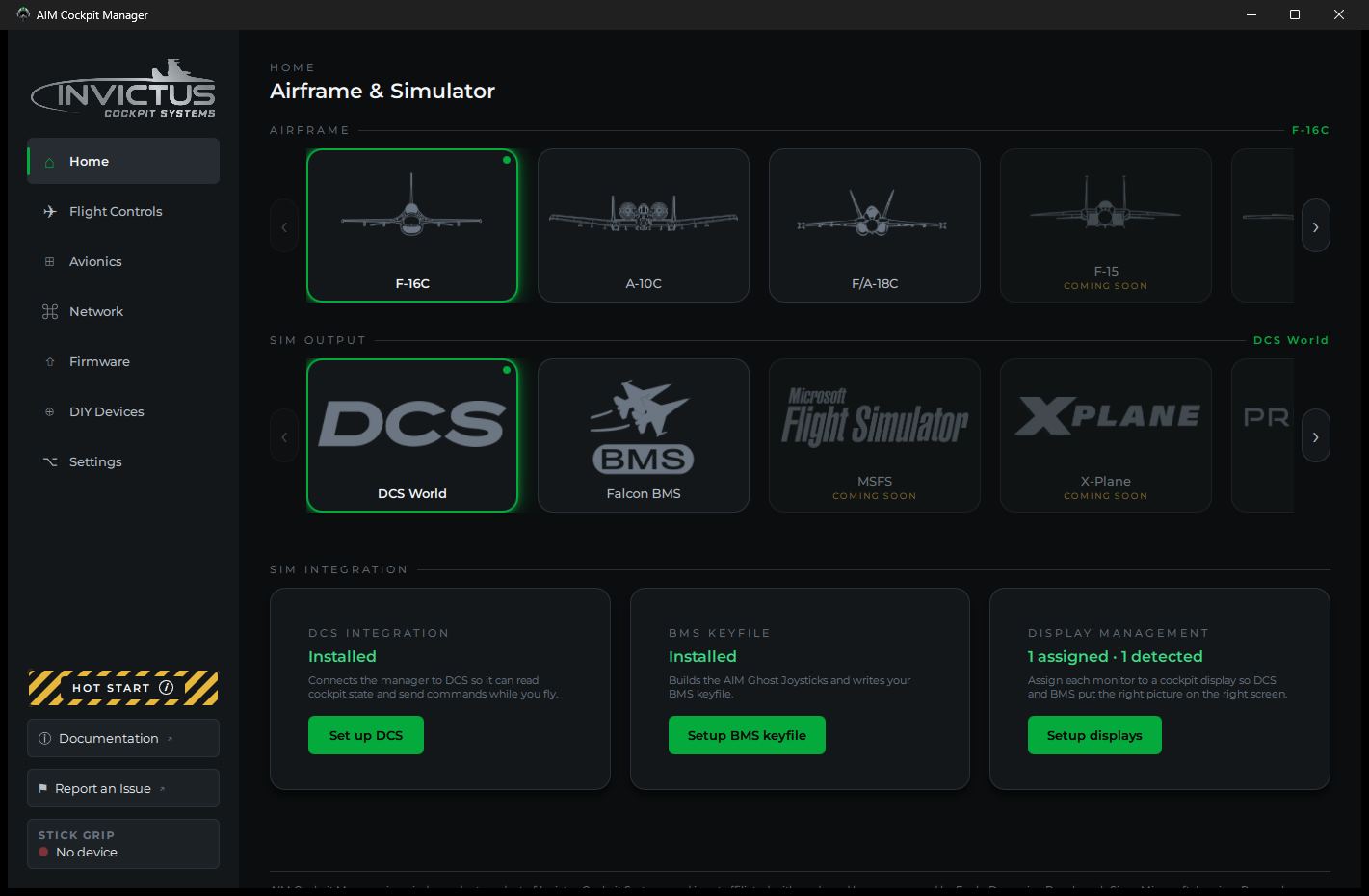
Pick your airframe and simulator on the Home page first. Everything else follows from that choice.
Setting up for the first time? Work through these in order:
- What You Need. Hardware and software checklist before you begin
- Install the Manager. Download, install, first launch
- Set Up the Cockpit Network. Get your PC talking to AIM boards (skip this for USB boards)
- Add Your First Board. The setup wizard
- Assign Controls to Pins. Map your switches and knobs
Already running, looking for something specific?
| I want to… | Go to |
|---|---|
| Set up DCS World | Set Up DCS |
| Set up Falcon BMS | Set Up Falcon BMS |
| Put displays on extra monitors | Cockpit Displays in DCS or Cockpit Displays in BMS |
| Set up my VFT5 stick | VFT5 Side-Stick |
| Use my own Arduino, Teensy, Pico or ESP32 | Open Hardware |
| Pick how each gauge is built, set up a DED, PFLD or FFI screen, or align a screen with its bezel | Instruments |
| Drive gauge needles, the UHF readouts or a fuel flow screen from my own boards | Open Hardware |
| Wire a rotary switch to one input instead of one pin per position | Resistor Ladder Rotary Switches |
| Wire indicator lights or the caution panel | Indicator and Caution Lights |
| See what every panel and control does | Airframes |
| Fix something that's not working | Troubleshooting |
| Update the manager or board firmware | Update the Manager |
A note on sims
DCS World is the primary and most complete integration. Falcon BMS is fully supported for the F-16C. When a control isn't simulated in a particular sim, the wizard's Pins step shows it: each control carries a DCS tag and a BMS tag only for the sims that model it.