Test and Calibrate
What you'll do: verify that every wired control reads correctly in the manager, and calibrate your potentiometers, ladder-wired rotary switches and gauge needles so they map cleanly to the sim.
Before you begin
- At least one panel has pins assigned. See Assign Controls to Pins.
- Your controls are physically wired to the board.
Console Panels
Avionics, then Console Panels, shows your cockpit one console at a time, with every panel and control on it. No simulator needed.
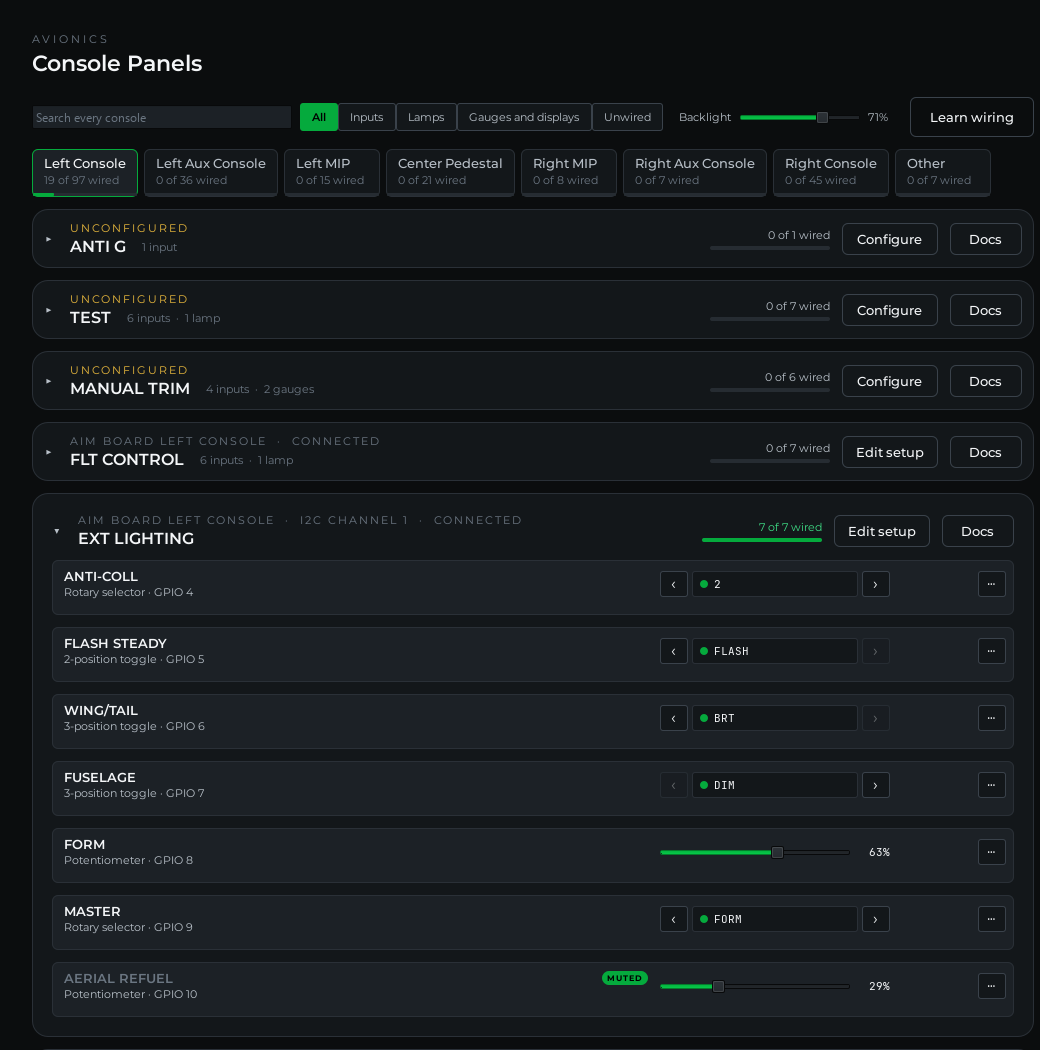
Pick a console from the tabs across the top. Each tab shows how much of that console is wired. Every panel is a card. Its top line says which board it's on, its bus channel and whether that board is connected, or UNCONFIGURED when no board has it yet. The card also shows how many of its controls are wired. Click a card to open it.
Each control's row shows what it is, the board pin it is wired to, and its live state. Flip a switch or turn a knob on the physical panel. The live state should follow immediately. Work through each control one at a time.
The ‹ and › arrows beside the live state step a switch or knob from the manager, which is how you send a position to the sim without touching the panel. Press works a button, and a slider moves a pot. The ⋯ button at the right end of a row opens that control's menu: mute, invert, response time, calibration, how a gauge is built, and a lamp test.
A control with parts of its own, like an MFD's buttons, the ICP's keys or an ECM button's lamps, has a ▸ before its name. Click it to show its parts as chips. A chip lights as the sim lights it, and a button chip presses while you hold it.
The search box looks across every console at once and shows each match under its console.
Reading the page
| What you see | What it means |
|---|---|
| Switch flips in sync with the physical switch | Correct wiring and pin assignment |
| Switch doesn't respond at all | Wrong pin, or a wiring issue; see below |
| Switch always shows as ON | GND and the pin are shorted, or the switch is normally closed. Invert switch wiring in the ⋯ menu fixes the second case |
| Pot moves when you turn the knob | Correct wiring and channel assignment |
| Pot doesn't move | Wrong analog channel or a wiring issue; see below |
| Pot moves but is noisy or jittery | Long wiring run picking up noise, or an unwired analog channel; see below |
| Rotary switch shows the wrong position | On a ladder-wired rotary, calibrate the positions; see below |
| A knob on a rotary encoder jumps 20 percent per click, or runs backwards | Calibrate the encoder; see below |
| A gauge's type ends in choose how it's built | Pick Mechanical, Screen or None (and LED where offered) on Instruments, or in the gauge's ⋯ menu |
Panel backlight
The Backlight slider at the top of Console Panels sets the brightness of every panel's backlight, on every board. AIM boards dim the lights on their backlight connectors. On Open Hardware boards, each panel's backlight is the pin you gave it in the setup wizard; see Open Hardware.

The manager remembers the level and sets each board to it as the board connects.
Calibrate a potentiometer
Raw pot readings rarely span the full range the sim expects. Calibration tells the manager where the physical minimum and maximum are, so it can translate them accurately.
- Click the pot's ⋯ button and choose Calibrate range….
- Slowly turn the knob from one mechanical stop to the other several times. The manager watches the incoming values and captures the range on its own. No buttons to click while sweeping.
- When the bar spans the full range, click Save.
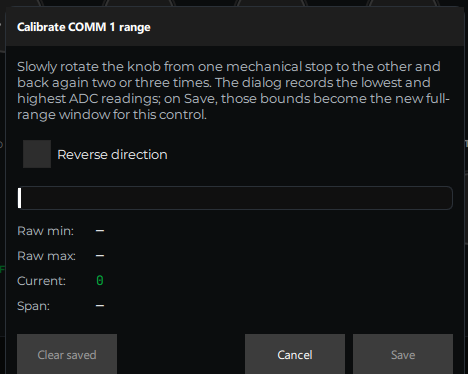
If the result doesn't look right, the bar starts mid-range or stops short, click Clear saved and sweep the knob again from scratch.
Tip
If the pot reads backwards (turning clockwise decreases the value instead of increasing it), tick Reverse direction in the calibration dialog. It flips the pot's travel instantly, no rewiring and no reboot, and any range you've already calibrated is flipped to match. (If you'd rather fix it in hardware, swapping the pot's 3.3 V and GND wires does the same thing.)
Calibrate a ladder-wired rotary switch
A rotary switch wired through a resistor ladder reports a voltage, and the manager needs to know which voltage means which position. Click its ⋯ button, choose Calibrate positions…, and park the switch on each position in turn. The full steps are on Resistor Ladder Rotary Switches.
Calibrate an encoder-wired knob
A pot wired as a rotary encoder counts clicks. Encoders differ in how many steps they report per click, and knobs differ in how many clicks should span the travel, so the manager learns both from you.
- Click the knob's ⋯ button and choose Calibrate encoder….
- Turn the knob exactly five clicks in one direction. The dialog counts the steps and shows how many that is per click. If the count stays at zero, the knob is at the end of its travel: turn it the other way.
- Set Clicks from one end of the travel to the other. Twenty is a good default for a volume or brightness knob.
- Tick Reverse direction if the value runs the wrong way.
- Click Save. The setup is sent to the board again with the new count range.
Calibrate a gauge
A needle on a motor has to be matched to its dial. Click Calibrate on the gauge's row on Instruments, or click the gauge's ⋯ button on Console Panels and choose Calibrate gauge…. On a gauge with several needles, Calibrate asks which needle, and on Console Panels each needle's row has its own ⋯ button.
The dialog has three sections:
- CALIBRATION sets up the motor. A stepper motor has Steps / degree, Zero offset, Backlash compensation and Total motor travel. A servo has Pulse at zero and Pulse at full scale, in microseconds. Every motor has Gauge sweep, the angle the dial covers. A 28BYJ-48 or a stepper driver also has Turns the other way. A servo that turns the wrong way needs Pulse at full scale set lower than Pulse at zero.
- DIAL matches the needle to the printed face. Set Units, Min and Max. For a face that isn't linear, drive the needle to a mark on the real face, type that mark's value in Reading at the needle, and click Capture. The captured points set the needle, with straight lines between them. Remove takes one point out and Clear points takes them all out. Some gauges, like O2 PRESSURE, follow the sim's own dial curve until you capture points of your own.
- TEST POSITION moves the needle with a slider, or straight to 0, 25, 50, 75 or 100 percent of the sweep, so you can check it against the face.
Home Motor drives an X27.168 into its end stop to find zero. A 28BYJ-48 or a stepper driver has no end stop: turn the needle to its rest position with the test slider, or by hand with the board unpowered, and click Set home here.
Apply sends the settings to the board and saves them. The dialog stays open so you can keep adjusting. Reset puts the motor's starting values back. With many captured points the settings scroll, and the buttons stay at the bottom of the dialog.
Test a lamp
Lamps normally follow the sim. To check a freshly wired one, click the lamp's ⋯ button and choose Test lamp. Every cell of that indicator lights for three seconds. The caution panel is tested from its card on Instruments with Test lamps.
Diagnosing problems
Menu fixes for switches
Two entries in the ⋯ menu solve the most common switch complaints without touching a soldering iron:
Invert switch wiring: if a toggle reads backwards (up shows as down), it was wired to the opposite throw. This flips it in software, instantly, and the fix persists with the board's configuration. No rework, no reboot.
Adjust response time…: how long the board waits for a switch's contacts to settle before reporting a new position. Raise it if a rotary switch briefly snaps back to its previous position when you turn it; lower it if a control feels slow. Saving sends the change to the board; an AIM board restarts for a moment. Rotaries default to 100 ms.
A switch doesn't respond
- Check the pin assignment. Open the board, click Edit, then 3. Pins, and confirm the control is on the pin you wired.
- Check the wiring. With the board powered, use a multimeter in continuity mode across the switch terminals to confirm it's switching. Then confirm the wire from the pin goes all the way back to the board header. No broken joints.
- Try a neighboring pin. Temporarily assign the control to an adjacent pin and bridge that pin to GND with a wire. If the manager responds, the original pin is fine and the issue is in the wiring to that pin. If it still doesn't respond, the pin may be damaged. Try a different one.
A pot doesn't move
- Check the channel. Confirm the pot is assigned to an analog channel (P1 to P8 on a Sidewinder, an analog pin on an Open Hardware board), not a GPIO pin.
- Check the supply wires. The wiper wire carries the signal, but the pot needs the board's supply and GND on the outer terminals to produce one. Confirm both are wired.
A pot is jittery or noisy
- Unassigned analog channels float and read random values if nothing is connected to them. If you see jitter on a control you don't plan to wire, click its ⋯ button and choose Mute this control. If you do plan to wire it later, you can ignore the jitter for now. It goes away once a pot is connected and calibrated.
- Long wiring runs can pick up interference. Try a shorter run or twisted-pair wiring between the pot and the board.
- Dirty pot wiper. On older pots, a worn wiper causes noise. Try exercising the knob through its full range a few times; if it doesn't improve, the pot may need replacing.
Next: Swap or Replace a Board or continue to Set Up DCS