Set Up DCS
What you'll do: install the DCS integration from the manager with one click, so your cockpit controls send commands to DCS World and your cockpit lights and displays update from the sim.
Before you begin
- DCS World 2.9 or newer is installed and has been launched at least once (so its Saved Games folder exists).
- The manager is installed and running. See Install the Manager.
- At least one board is configured. See Add Your First Board.
Steps
1. Open the DCS Integration card
On the manager's Home page, pick DCS World under Sim Output, then click Set up DCS on the DCS Integration card.
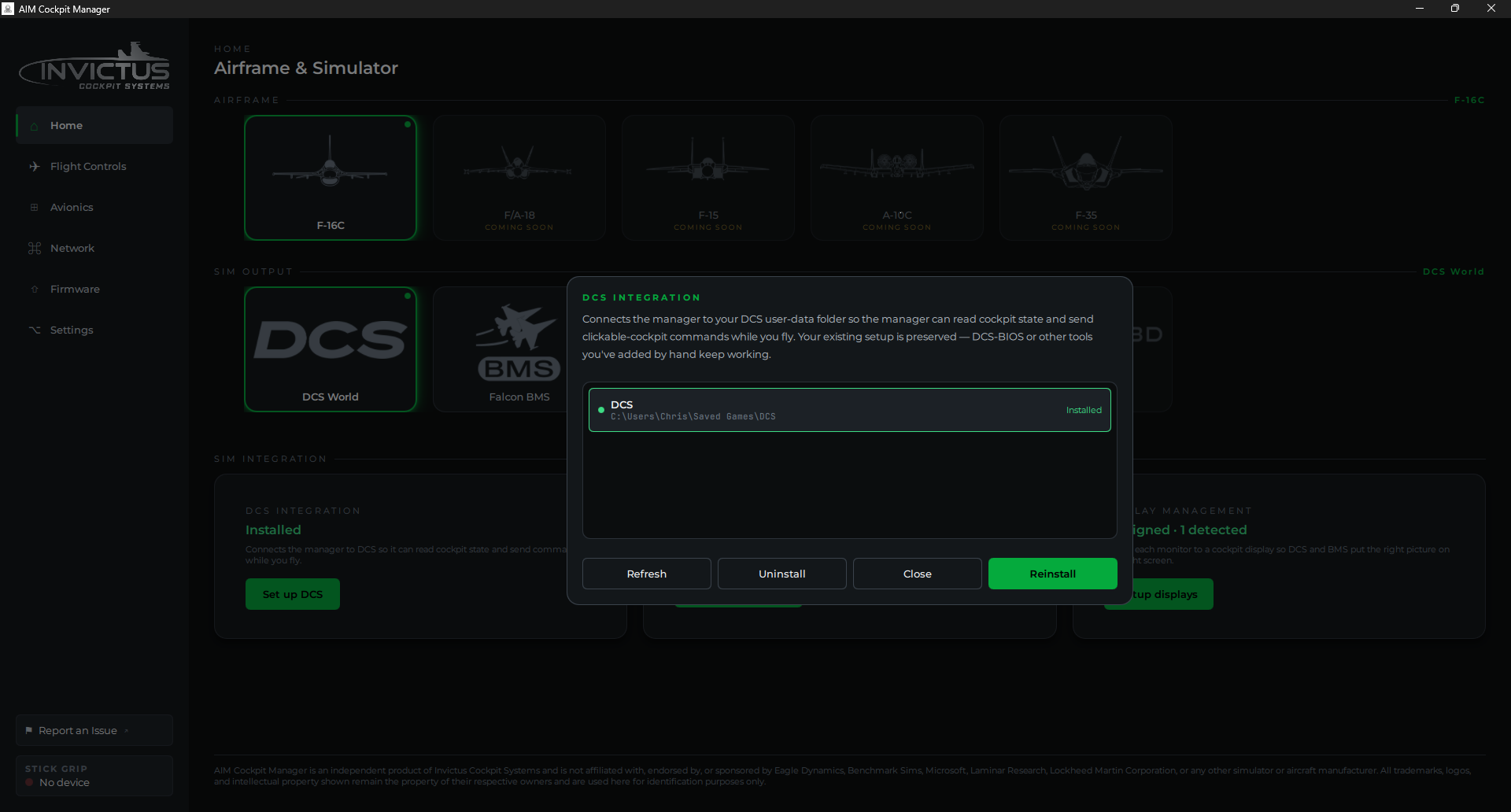
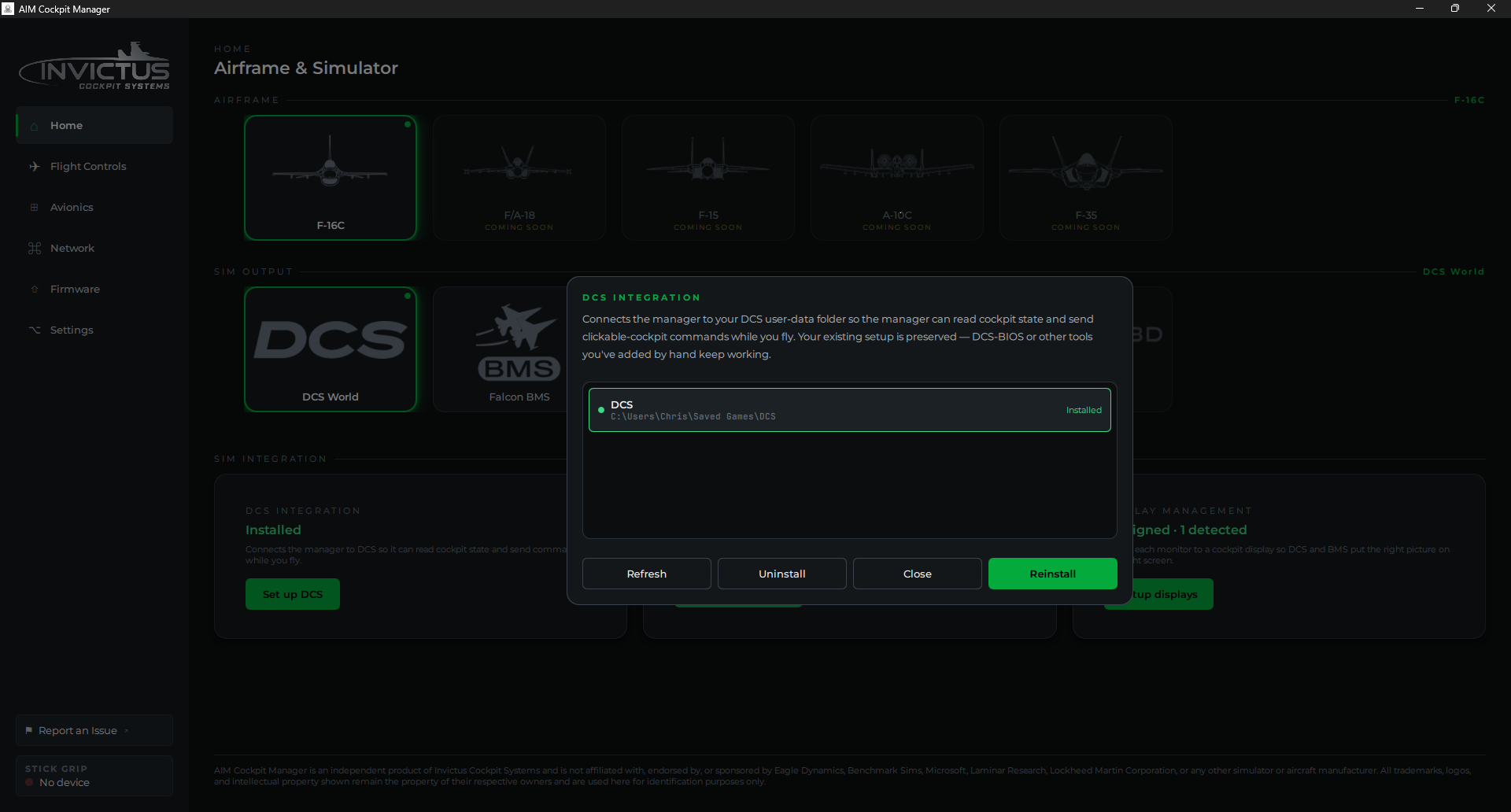
The card lists every DCS variant the manager detected under your Saved Games folder, typically DCS and DCS.openbeta, and shows the install status for each. If a variant you expect to see isn't listed, it means DCS hasn't been launched yet and its Saved Games folder doesn't exist.
2. Install the integration
Click Install. The manager installs the integration into every detected variant at once:
- Copies AIM_export.lua and its supporting library files into
Saved Games\[variant]\Scripts\AIM\ - Adds a single load line to
Scripts\Export.luaso DCS picks them up automatically on launch
If you already have other tools hooked into Export.lua (such as other export scripts), the manager adds its line alongside them without disturbing anything else.
Note
If the card shows Update available rather than Install, a newer version of the integration is bundled with this version of the manager. Click Update to replace the older files. The process is identical to a fresh install.
3. Check the DCS install folder (only for cockpit displays)
You can skip this for a controls-only setup. It only matters if you're putting a cockpit display like the F-16C RWR on a monitor.
The card also shows your DCS install folder, where DCS World and its aircraft modules are installed. This is separate from the Saved Games folder above, and the manager needs it to apply aircraft display fixes such as the F-16C RWR display patch (see Cockpit Displays in DCS).
The manager finds this automatically for most setups, including DCS installed on a different drive from your Saved Games folder. When it's found, the path shows in green:
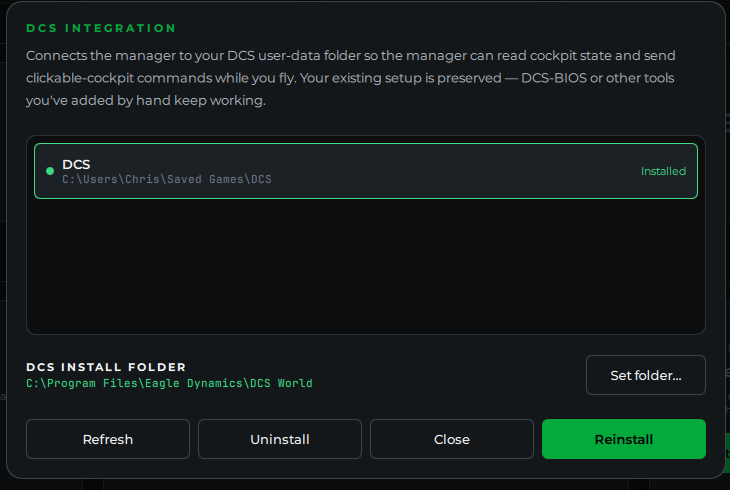
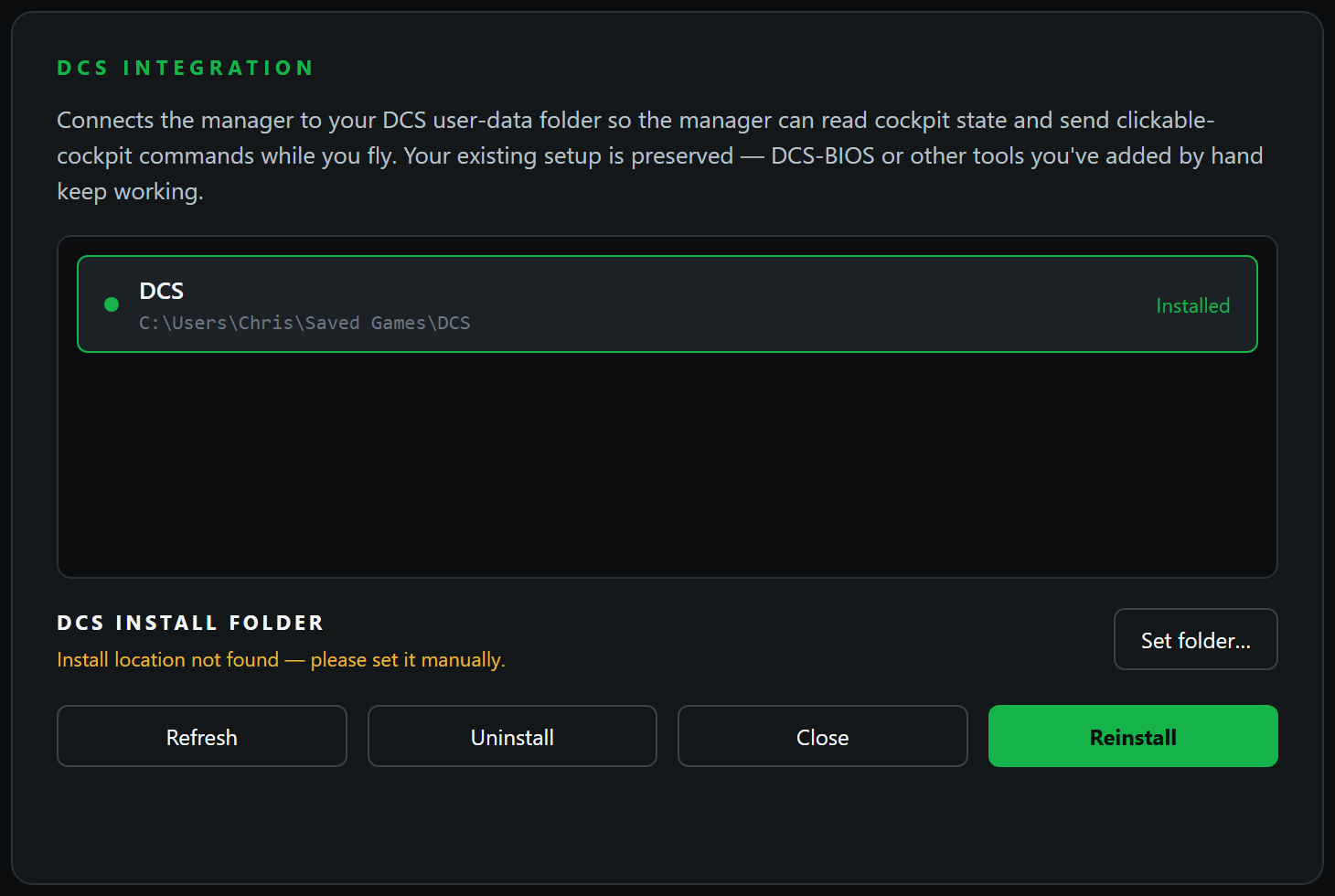
If DCS is installed somewhere unusual and the manager can't find it, the path turns into a yellow warning. Click Set folder… and choose your main DCS folder. The one that contains the Mods and bin folders. The manager remembers it for next time.
4. Launch DCS
Start DCS World and load into the airframe selected on the Home page. The integration activates automatically. No in-game steps required.
5. Confirm the connection
Back in the manager, the DCS Integration card should show Connected. If you're sitting on the DCS main menu rather than in a cockpit it may show Waiting. That's normal; it connects once you're in an aircraft.
Check it worked
Flip a switch on your cockpit panel. The corresponding switch in DCS should move. If your aircraft has cockpit indicator lights or displays wired to your panel hardware, they should update to match the sim state.
If something's wrong
| Problem | Fix |
|---|---|
| Status stays at "Not installed" after installing | Check that DCS has been launched at least once so the Saved Games folder exists, then reinstall. |
| Status shows "Installed" but never "Connected" | Make sure DCS is running and you're loaded into a mission, not sitting on the main menu. |
| Controls reach the manager but nothing happens in DCS | Confirm the airframe selected on the Home page matches the aircraft you're flying. The integration follows that choice. |
| A switch changes in Console Panels but not in DCS | The control may not be simulated in DCS. In the wizard's Pins step, a control without a DCS tag isn't modeled. |
| The RWR display fix says no F-16C module was found | Your DCS may be installed on a different drive. In the DCS Integration card, click Set folder… and choose your main DCS folder (the one with Mods and bin). |
Surviving DCS updates
DCS updates and repairs routinely wipe the integration files from Saved Games, which used to mean redoing this page's steps after every patch.
From manager 1.6.0, the manager checks the integration at startup and reinstalls anything a DCS update removed or reverted: the export script, the aircraft patches, and your stick's input profile. When it repairs something you get a brief note; there's nothing to click. The behavior is controlled by Repair DCS integration automatically in the App Behavior section of Settings, on by default.
Next: Cockpit Displays in DCS