Update the Manager
What you'll do: install a new version of AIM Cockpit Manager when one is available.
How updates work
The manager checks for updates against the GitHub releases page for invictuscockpits/aim-cockpit-manager-releases. When a newer version is found, a banner appears at the top of the app window. The manager downloads the installer in the background; you run it when ready.
Automatic checks are on by default: the manager checks when it starts, every few hours while it runs, and when you open it from the system tray. If a new version comes out while the manager sits in the tray, a Windows notification says so; click it to open the manager. You can turn this off in Settings → Check for updates automatically.
When an update is available
A banner appears at the top of the manager window:
AIM Cockpit Manager X.Y.Z is available. You are running A.B.C.
Click Download in the banner. A window shows what's new in that version: a short summary, then what's New, what Changed and what was Fixed. The list scrolls when it is long. Full release notes opens the GitHub release page in your browser.
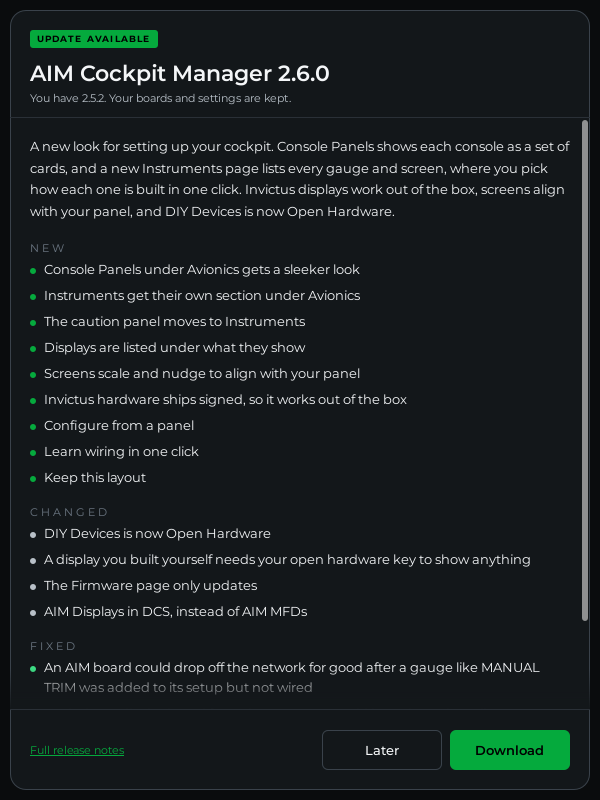
The window only ever opens when you click Download. It never pops up by itself, so it can't get in the way while you fly.
Click Download in the window to start. The window shows the download's progress, and so does the banner:
Downloading update X.Y.Z (45%)
When the download completes, the window's button changes to Install now and the banner's to Run installer:
AIM Cockpit Manager X.Y.Z is ready to install.
Click it. The manager checks that the installer is signed by Invictus Machine LLC, then starts it. Follow the prompts. The installer closes the manager automatically before replacing files. Later closes the window. The banner stays until you update.
Note
The window arrived in 2.6.0. Updating from 2.5.2 or older, the banner's View release notes opens the release page in your browser instead.
Check for updates manually
Click the version number at the bottom of the left sidebar. It shows Checking for updates…, then up to date, or the new version with the banner at the top of the window.
You can also go to Settings and click CHECK NOW under the Software section. If an update is found, it switches to GET UPDATE and the banner appears.
See what changed
Click the small i next to the version at the bottom of the sidebar. The About AIM Cockpit Manager window shows what your version includes and the release notes for every version, with links to this guide and the issue tracker. Copy details copies your version information for a support message.
If something's wrong
| Problem | Fix |
|---|---|
| No banner appears even though you expect an update | Click the version number at the bottom of the sidebar. If it still doesn't find one, confirm the release is published on the releases page. |
| "Download failed: the download stopped" or "doesn't match the release" | The download was cut off or damaged, so the manager threw it away. Click Download again. |
| "The downloaded installer isn't validly signed" | Click Download again. If it keeps happening, get the installer from the releases page. |
| "GitHub returned HTTP 403" error | The GitHub API rate limit was hit. Wait a few minutes and try again. |
| Network error | Check your internet connection. The manager needs access to api.github.com. |
| Installer fails to launch | The download may be incomplete. Try clicking Download again to re-fetch. |
See also: Update Board Firmware