Assign Controls to Pins
What you'll do: plan your pin layout in the manager, export it as a reference sheet, and use that sheet to guide the physical wiring of your board. Or wire first and let the manager learn the pins.
After the board wizard, the manager knows which panels are on the board. Pin assignment is what tells it which pin each control is connected to. There are two ways to get there:
- Assign first, then wire. Plan the layout in the wizard's Pins step, export the pin list, and wire from it. Best for a board you are wiring from scratch.
- Wire first, then learn. Wire the controls to any free pins, then let the manager watch you flip each one and record where it landed. Best for a panel that is already wired, or when you would rather not plan.
Before you begin
- Your board is set up. See Add Your First Board or, for a USB board, Open Hardware.
- Your controls don't need to be wired yet.
How pin assignment works
Pins are assigned in the setup wizard's Pins step. To get there for a board that is already set up, open the board (the Network page for an AIM board, Open Hardware for an Open Hardware board), click Edit (Edit setup on the Open Hardware page), then click 3. Pins at the top of the wizard.
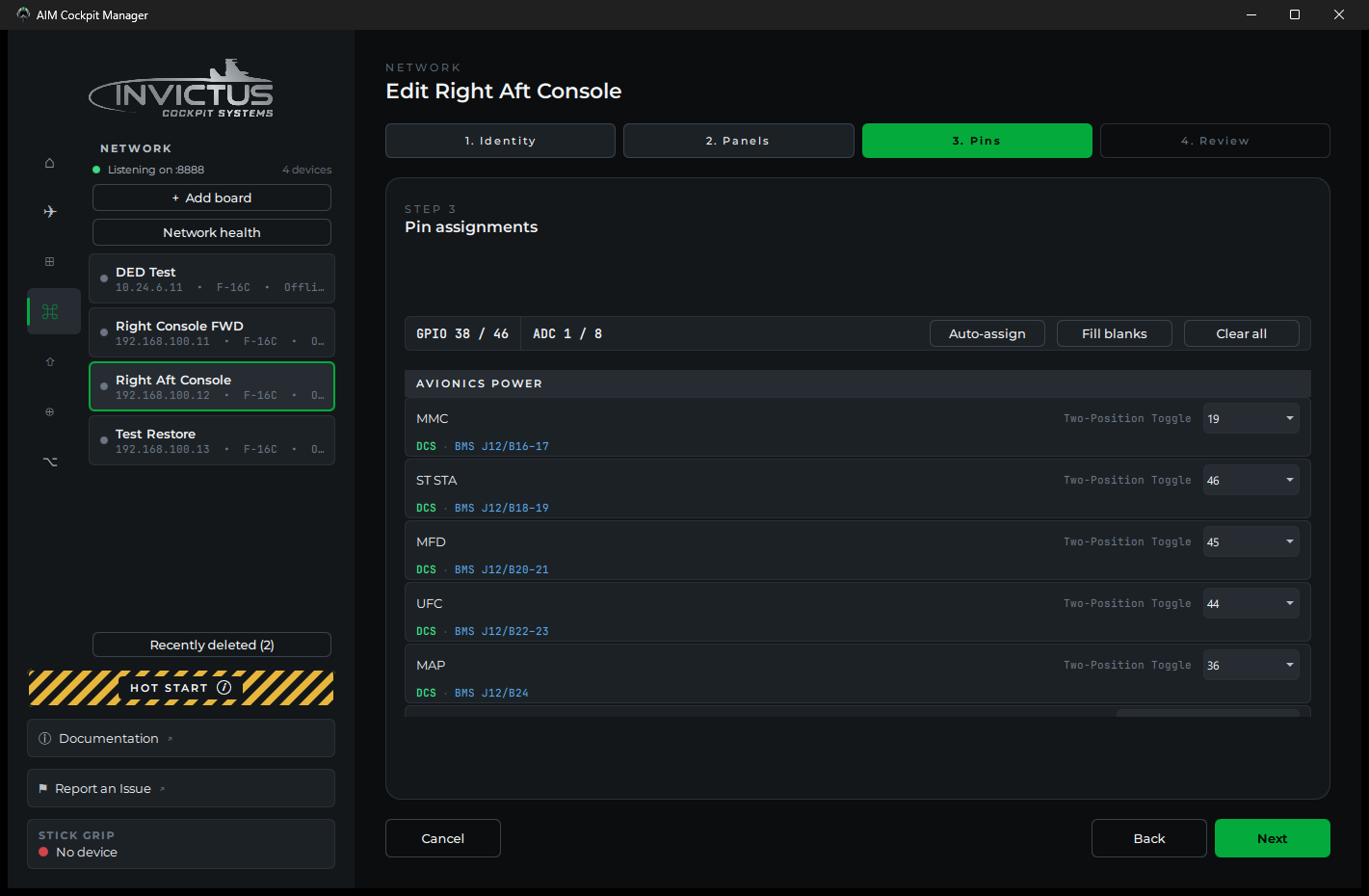
Every control on the board's panels is listed under its panel, with a dropdown for each pin it needs. The header counts GPIO pins and analog channels used against what the board has. The dropdowns only offer the pins the board actually has, named the way the board prints them.
| Control | Takes |
|---|---|
| Two-position toggle, pushbutton, lamp | One GPIO pin |
| Three-position toggle | Two GPIO pins, one per end position |
| Rotary encoder | Two GPIO pins, A then B |
| Rotary switch | One GPIO pin per position, or one analog channel through a resistor ladder. See Resistor Ladder Rotary Switches |
| Potentiometer, Hall-effect sensor | One analog channel: P1 to P8 on a Sidewinder, an analog pin on an Open Hardware board. The Phoenix has no analog channels. Or a rotary encoder on two GPIO pins, A then B; see below |
| A cluster of lamps (an indexer, an eyebrow, the lamps in a button) | One GPIO pin per lamp. See Indicator and Caution Lights |
| Gauge needle | Four GPIO pins for an X27.168. On an Open Hardware board, the pins the motor you pick needs. See Open Hardware |
On an Arduino, Teensy or Pico, a lamp can sit on a MAX7219 lamp matrix instead of a pin of its own. See Lamps on a MAX7219.
Every pot's row also offers Rotary encoder, two pins. Pick it to wire a click-stop encoder in place of the pot: the board counts the clicks and the manager keeps the knob's value, so the sim still sees a pot. Twenty clicks span the travel until you calibrate it; see Test and Calibrate.
Under each control's name, a DCS tag and a BMS tag show which sims model it. A control with neither still reads in the manager; it just has nothing to drive.
Steps
1. Open the Pins step
Open the board, click Edit, then 3. Pins.
2. Assign pins
For each control, pick a pin from its dropdown.
Tip
Auto-assign fills in pins sequentially starting from the first free pin on the board (Fill blanks assigns only the unassigned controls; Clear all resets them). It's a useful starting point, but take a few minutes to review the result before you commit to it. Think about how the pins group physically on the board header and how that maps to your controls. Assigning nearby pins to controls that are close together in the cockpit keeps your harness short and organized. A little planning here pays off every time you need to trace a wire later. A cockpit wired without any thought to grouping can turn into a nightmare very quickly.
3. Check for conflicts
If two controls share the same pin, both dropdowns turn red and the wizard won't let you finish until one of them moves. GPIO pins and analog channels are numbered separately: GPIO pin 1 and channel P1 are different physical pins.
4. Save & Upload
Click Next to the Review step, then Save & Upload. The manager sends the pin map to the board. An AIM board restarts for a moment to apply it; an Open Hardware board takes it at once.
5. Export the pin list
The Review step, and an AIM board's page on the Network page, have an Export pinout button. It writes a document listing every control alongside its assigned pin and input type, ready to use as a wiring guide.

Tip
Print it or save it somewhere permanent. A complete pin list for every panel in your cockpit is one of the most valuable reference documents you can keep. Six months after the wiring is done and the cockpit is buttoned up, you will not remember which pin that one FLCS switch is on, but if you have the exported sheet, you'll find it in seconds. Keep a folder (physical or digital) with a pin list for every board in your cockpit. It will save you enormous headaches when you need to troubleshoot, add a panel, or re-wire anything.
6. Repeat for each board
Work through each board. You don't have to assign everything at once; unassigned controls just sit inactive until you do.
Or: learn the wiring
If the controls are already wired, skip the planning and let the manager find the pins.
- Make sure the board is connected: learning watches its pins.
- Open Avionics, then Console Panels, and click Learn wiring. With one board for your airframe connected, learning starts on it right away. With several, pick the board and click Start.
- Open a panel's card and click Learn on a control's row, then move the control on the panel. The manager watches every pin and records the one that moved.
- Repeat for each control, then click Done. The new wiring is sent to the board.
Read each prompt. A two-position toggle is learned on the leg that means ON. A three-position toggle is learned one end at a time, starting from the center. A rotary switch is learned one position at a time; one wired through a resistor ladder is learned like a pot, by turning it. A pot wired as a rotary encoder is learned one click at a time, two clicks in all.
Learn mode works on Open Hardware boards, and on AIM boards with panel firmware 2.5.0 or newer. See Update Board Firmware.
Wire your controls
With your pin lists in hand, wire each control to its assigned pin.
AIM boards. Switches and lamps use one GPIO pin with the other leg to GND; no pull-up resistor is needed. Rotary encoders use two GPIO pins plus GND: the encoder's common to GND, A and B to the two pins. If it counts the wrong way, swap the two pins in the wizard or tick Reverse direction in its calibration. Pots use a potentiometer channel with 3.3 V and GND on the outer legs and the wiper to the channel. Never feed 5 V into a pot channel. It will damage the board. All board headers use JST PH connectors.
Open Hardware boards. The same idea with the board's own pins and supply. See the wiring table on Open Hardware.
See the FAQ for common wiring questions.
Check it worked
Open Avionics, then Console Panels, pick the console and open the panel's card. Each control's row shows the pin it is wired to and its live state. Flip a switch or turn a knob on the physical panel. The live state should follow in real time. If it does, the assignment is correct.
If a control doesn't respond, the two most common causes are a wrong pin number or a wiring issue; see Test and Calibrate for how to tell which it is.
Pin numbering reference
| Board | GPIO pins | Analog channels |
|---|---|---|
| Sidewinder | 1 to 46 | P1 to P8 |
| Phoenix | 1 to 16 | None |
| Open Hardware boards | The board's own pin names; see the pin table on Open Hardware | The board's analog pins, same table |
Next: Test and Calibrate